
HalveIt
Make video and audio files smaller, on your own computer. Nothing is uploaded anywhere.
Get it on GitHub Download the latest release
What it does
HalveIt compresses and converts media files. It opens in the browser you already use, and it also works entirely from a terminal. Version 2.1.1.
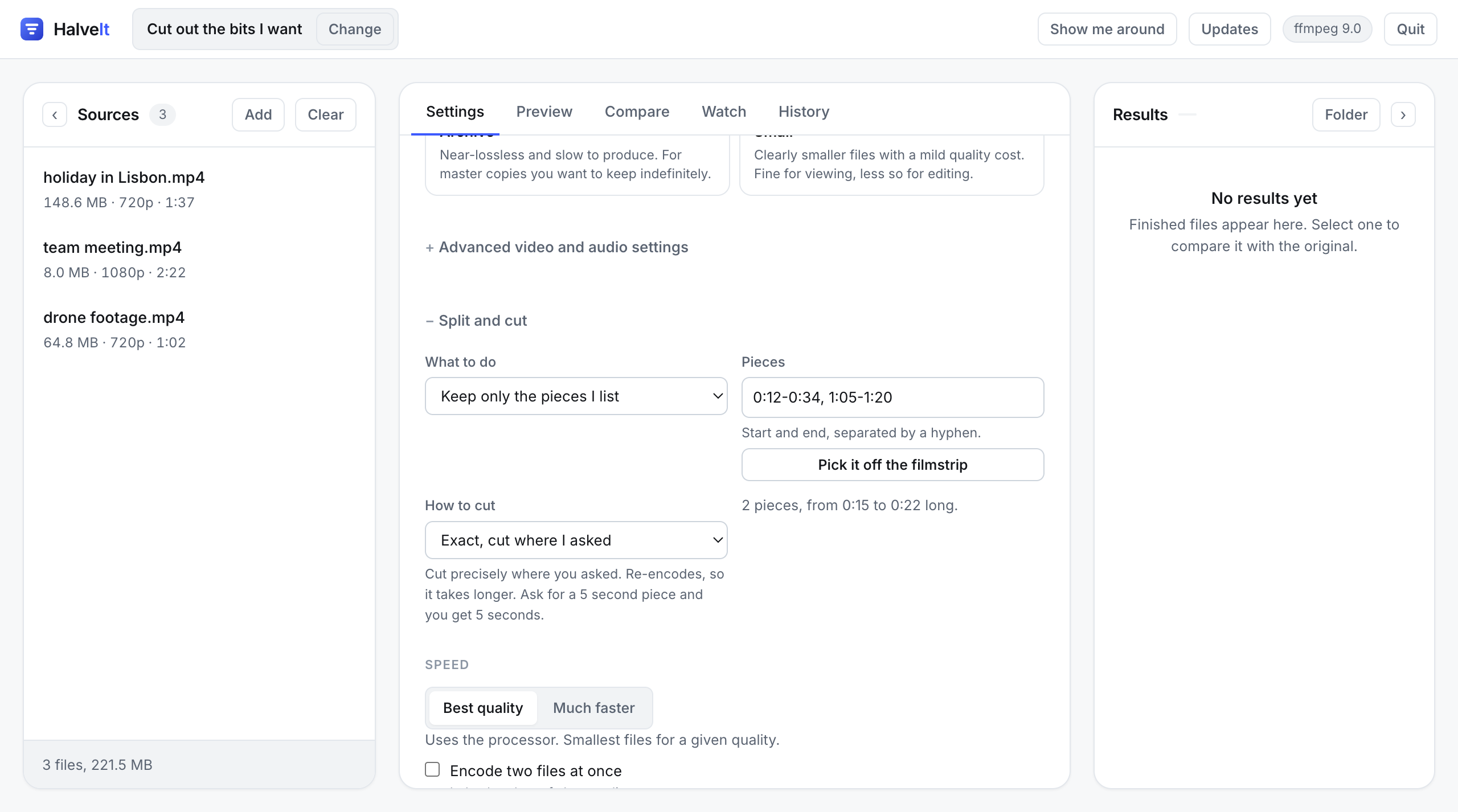
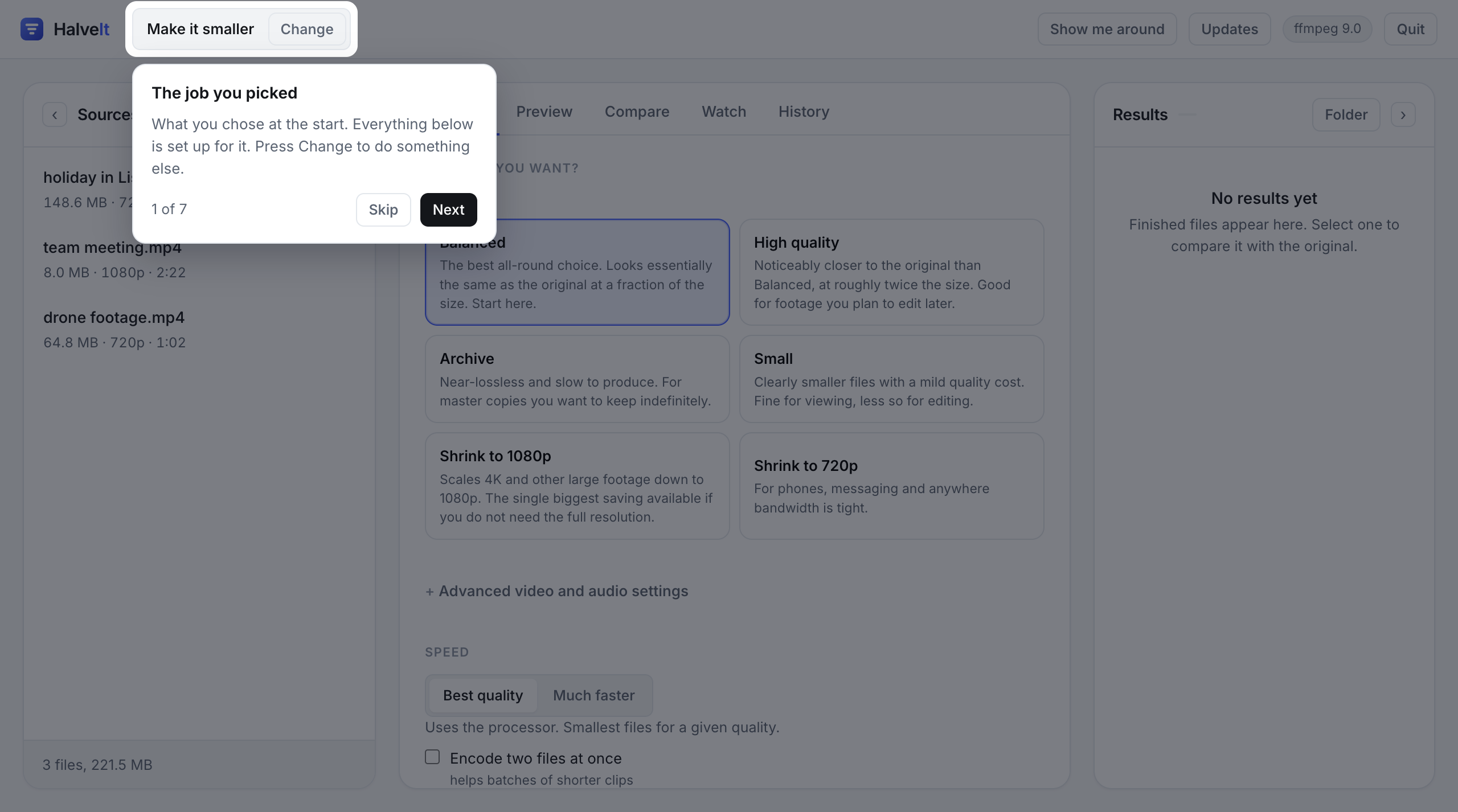
It starts by asking what you would like to do, and then shows you the settings for that job rather than all of them at once: make it smaller, fit a size limit, change the format, split it into pieces, cut out the bits you want, remove a section, take the sound out, or save just the sound.
| Kind | Reads | Writes |
|---|---|---|
| Video | MP4, MOV, MKV, AVI, WebM, MPEG, WMV, FLV, and more | MP4, MKV, WebM, MOV with H.265, H.264, AV1 or VP9 |
| Audio | MP3, M4A, AAC, WAV, FLAC, OGG, Opus, WMA, AIFF | Opus, AAC, MP3, FLAC |
Pictures are coming later
Stills and camera RAW are being worked on and are not in this version. They were close, but not close enough to hand somebody a wedding shoot and tell them it was fine, so they wait. When they arrive it will be as a release of its own, with measurements published alongside it rather than a promise. Video and audio are finished work and are what this version does.
What it looks like
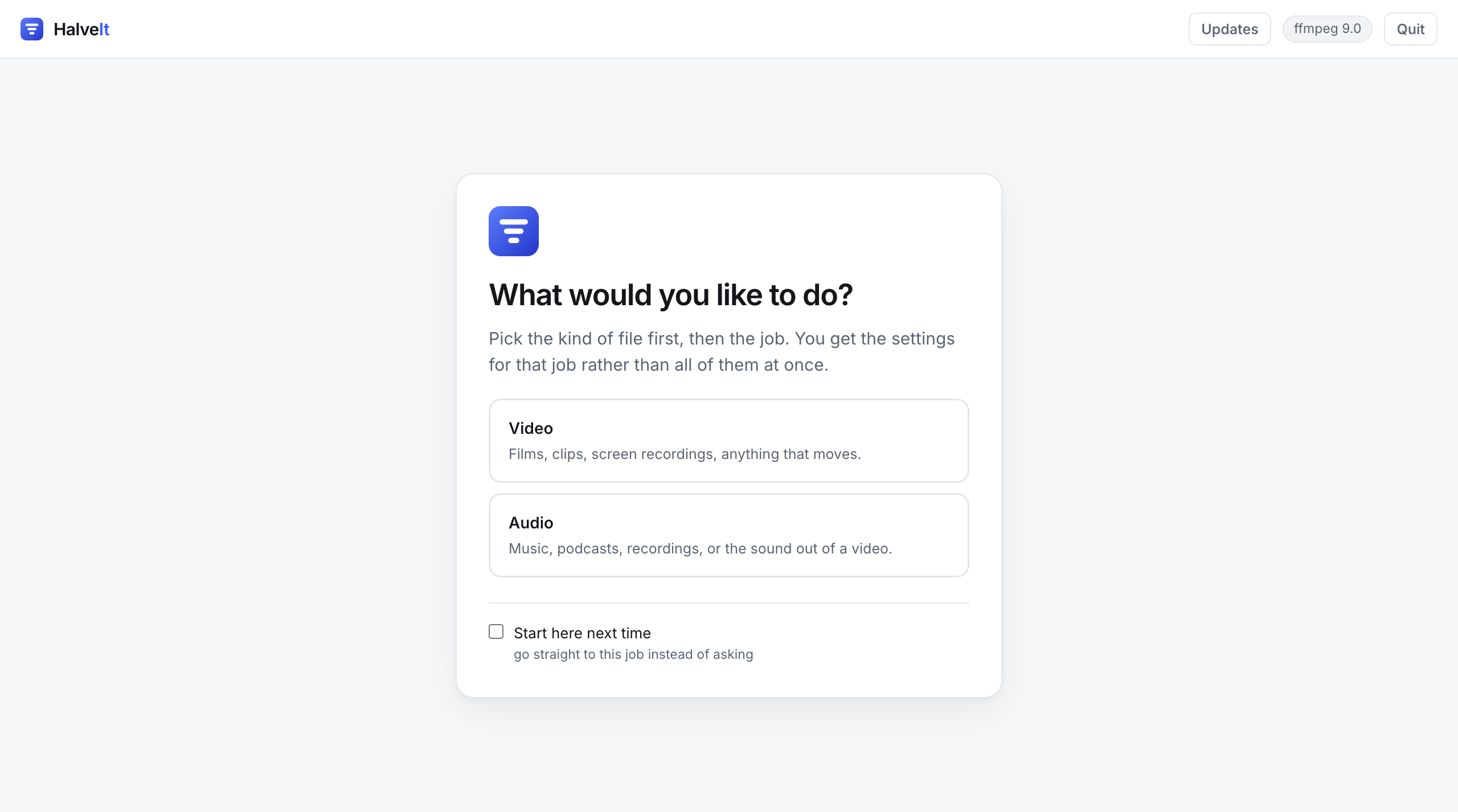
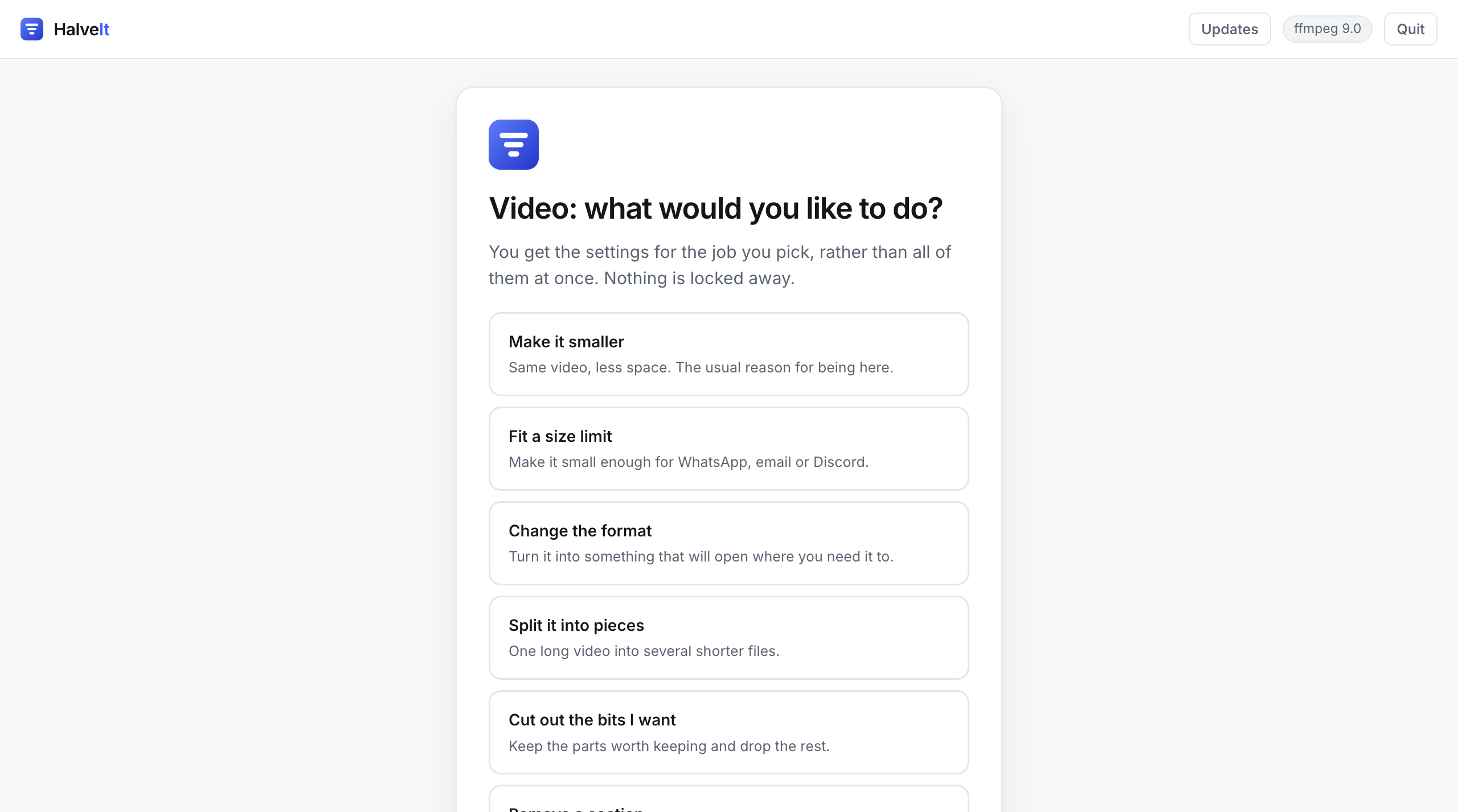
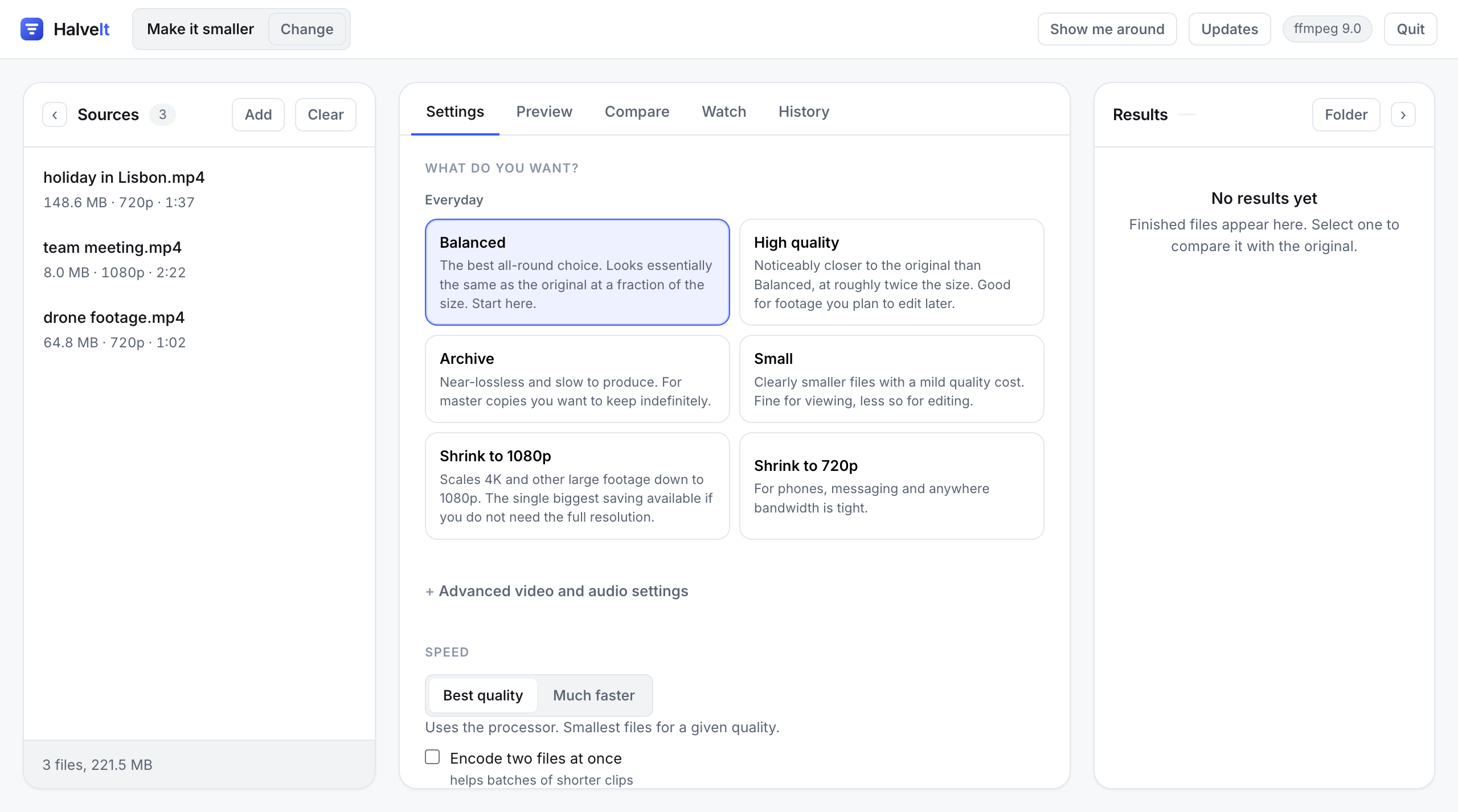
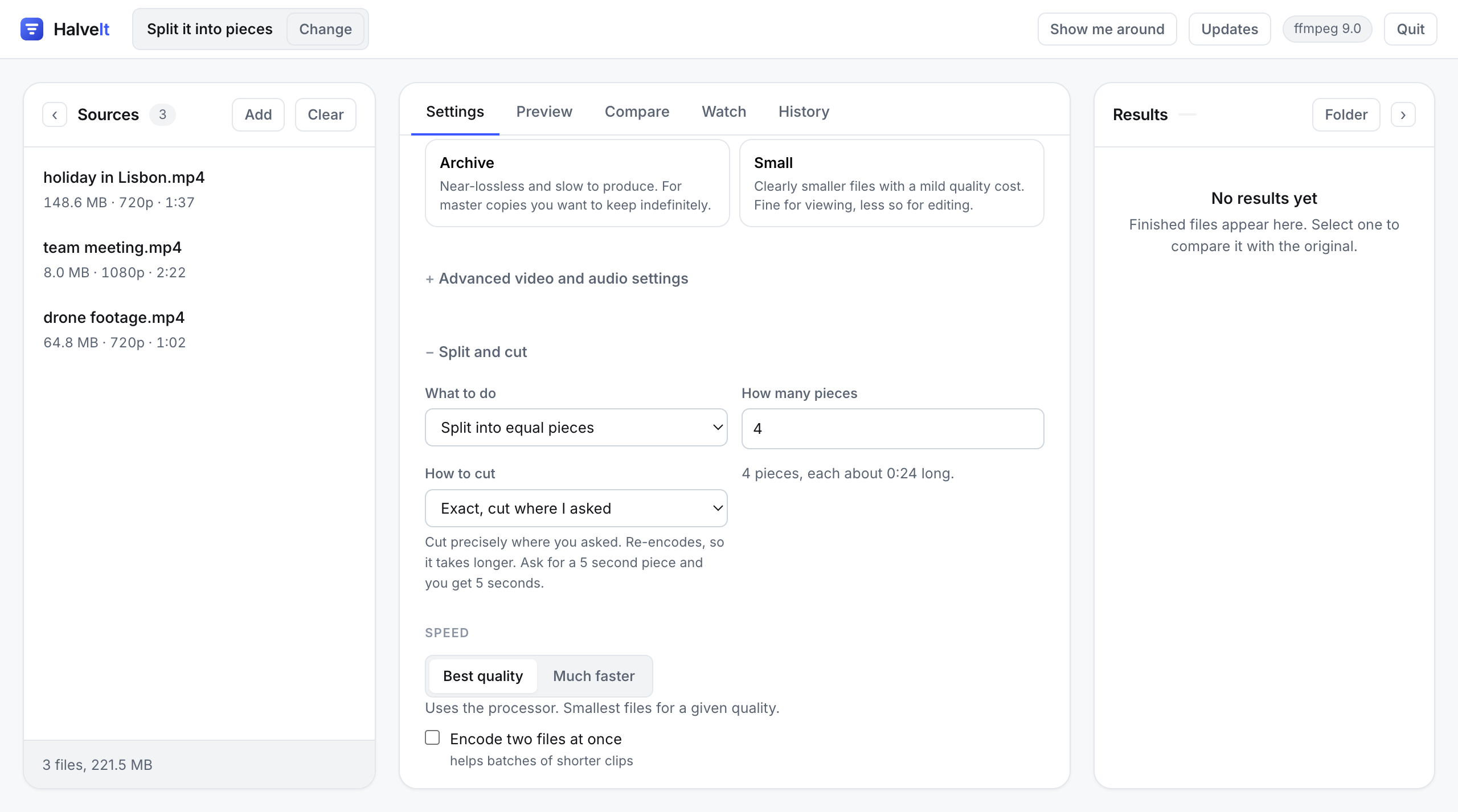
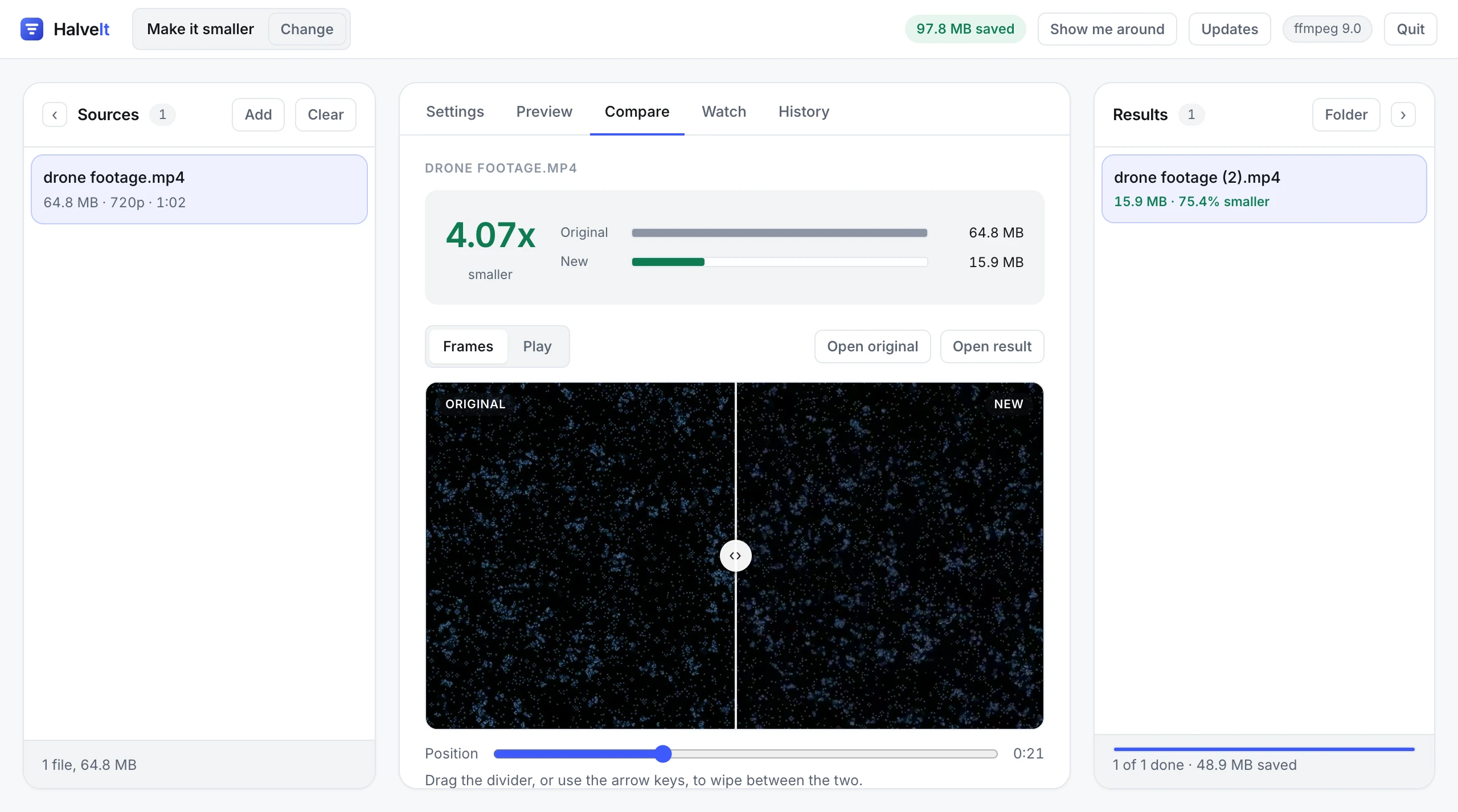
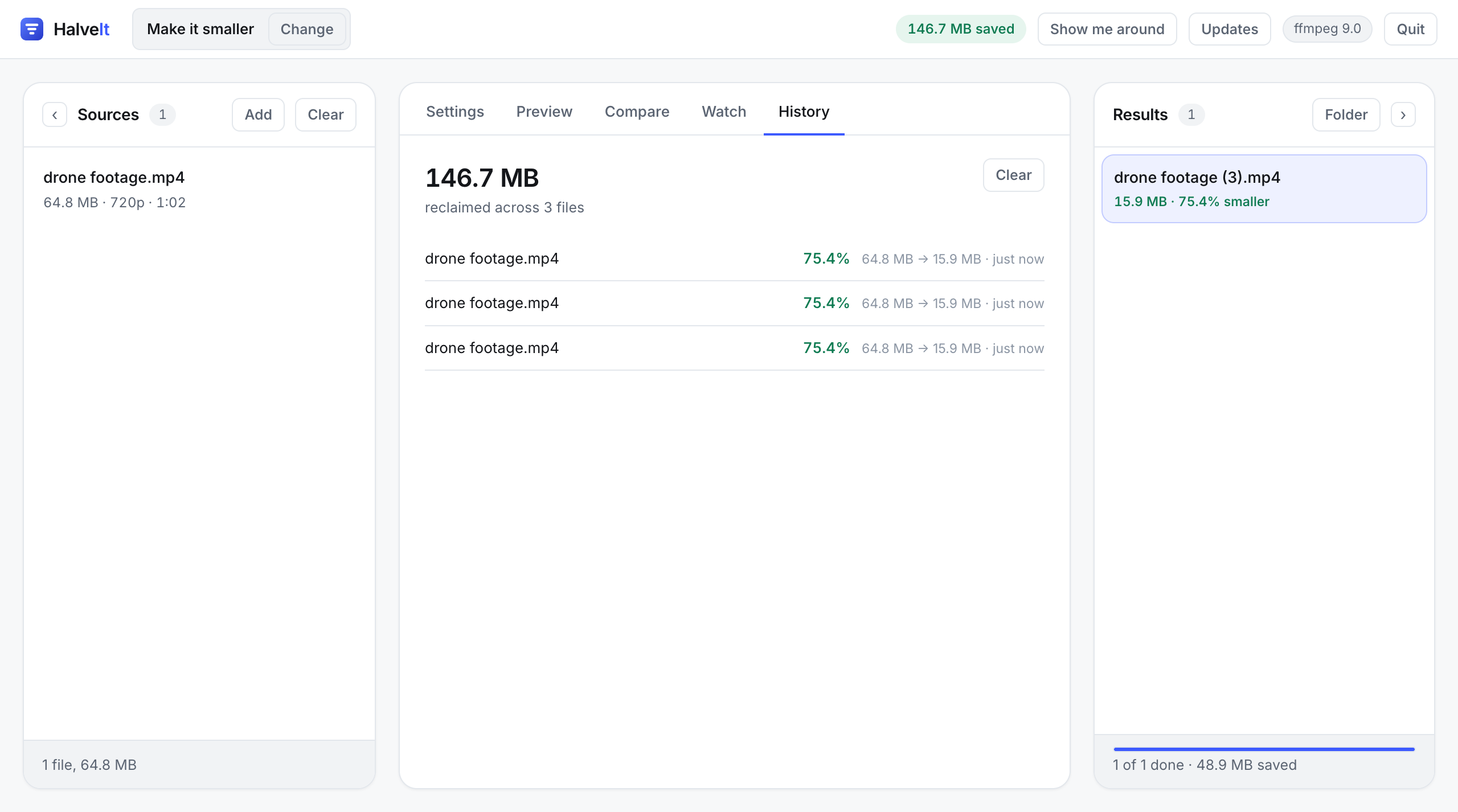
It needs the internet once, and then never again
On first run HalveIt fetches ffmpeg into its own folder. After that you can turn the network off and it keeps working: on a plane, on a train, on a machine that has never been online, or on one you would rather did not talk to anything.
That is the real difference from a converter on the web. Those want the file uploaded first, which puts your holiday videos, your work and your recordings on somebody else's server, subject to their size limits, their queue, their privacy policy, and their decision about how long to keep a copy.
Nothing you convert here leaves the computer, because there is nowhere for it to go. The interface is a small server on your own machine that only your own browser can reach.
Splitting and cutting
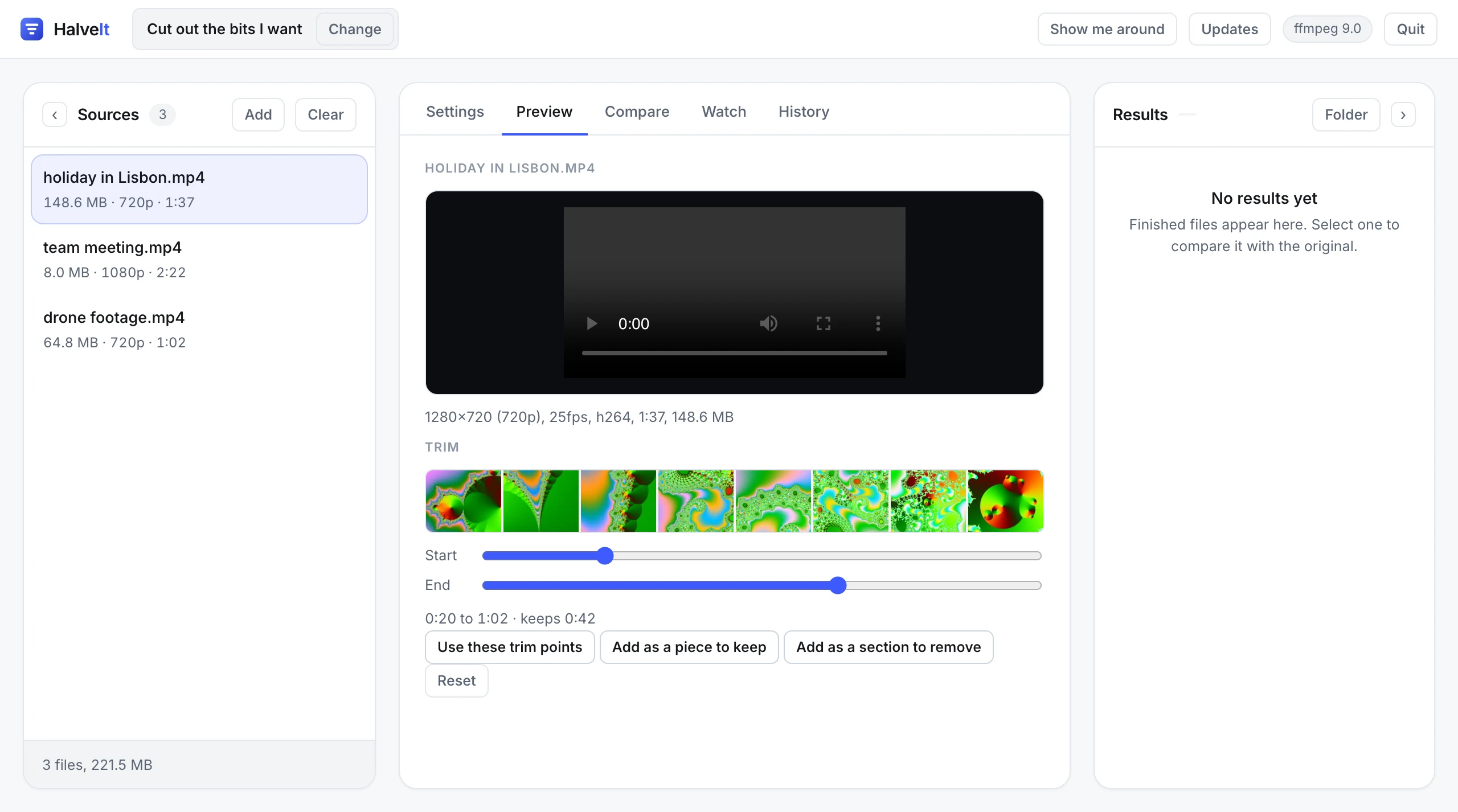
One file into several, or several pieces out of one. Into equal pieces, every so often, at times you list, or into pieces that each fit a size. Or keep only the pieces you want, or take a section out of the middle and join what is left. Video and audio alike.
You choose how the cutting is done. Exact cuts precisely where you asked and re-encodes, which means it compresses at the same time. Quick copies instead and is almost instant, at the cost of a piece running about a tenth of a second long. Removing a section is always exact, because joining copied pieces leaves a damaged frame at the join, and it says so rather than letting you find out.
Built for long jobs, not just single files
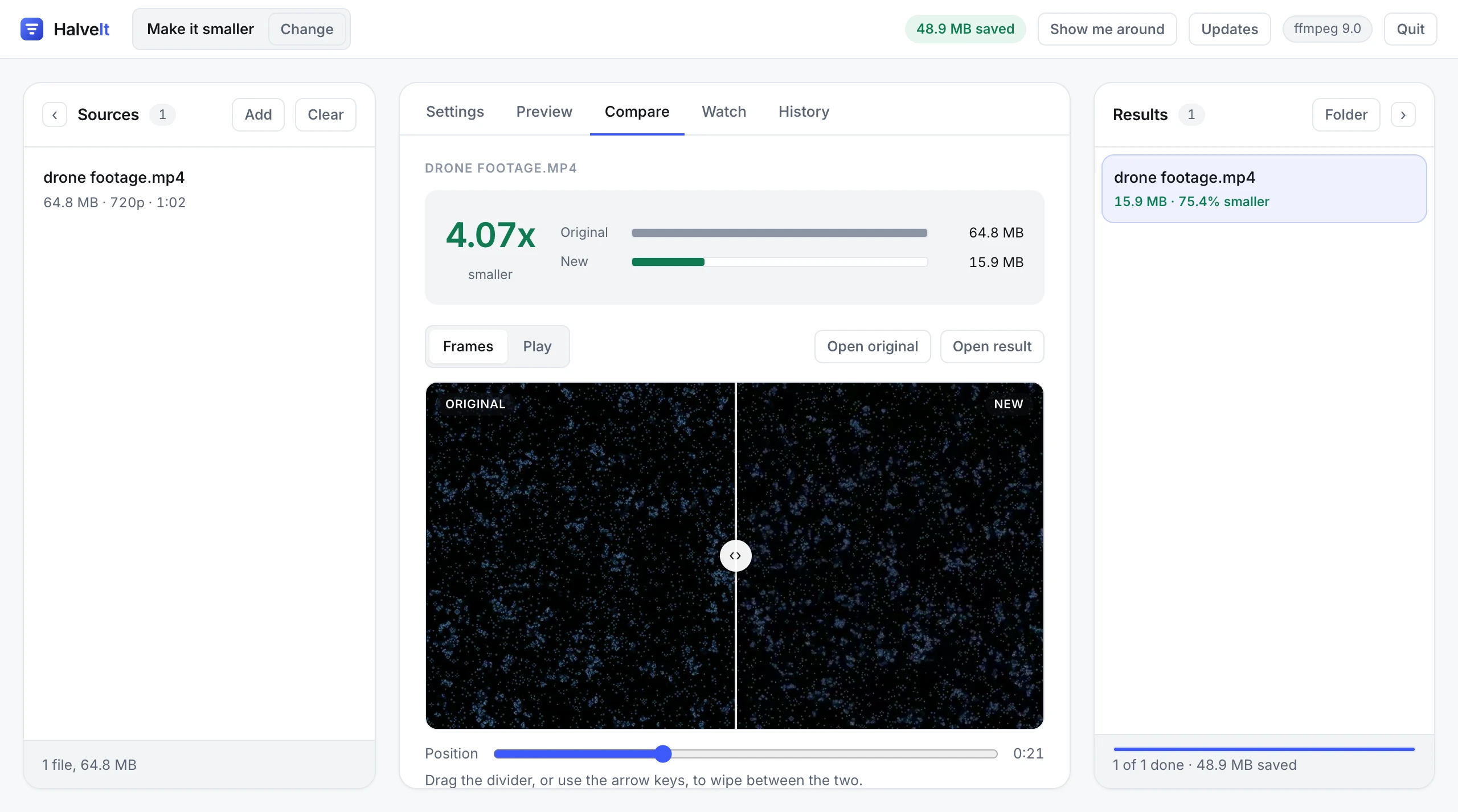
Point it at a folder of sixty videos and it works through them, showing what each one saved. A batch can be paused when you need the machine back and picked up afterwards, and the file being worked on finishes rather than being cut off, so nothing is left half written.
The summary at the end separates the two kinds of result: how many came out smaller, and how many came out larger and would have been better left alone. A run where most files grew usually means the wrong output format, which is worth knowing rather than hiding behind one number.
Getting started
There is nothing to install. No administrator rights are needed, nothing is put anywhere else on your computer, and deleting the folder removes HalveIt completely.
1. Download it
Take the latest release and download the Source code (zip) file at the bottom of it. If you would rather have the very newest work, use the green Code button on the repository page and choose Download ZIP.
2. Unpack it somewhere permanent
The zip unpacks into a folder with a long name such as
halveit-2.1.1. Rename it to HalveIt, which is
tidier, and move it to:
| System | Where to put it |
|---|---|
| Windows | C:\Users\<you>\Documents\HalveIt |
| macOS | ~/Documents/HalveIt |
| Linux | ~/Documents/HalveIt |
Not your Downloads folder, and not a temporary one. HalveIt keeps the tools it fetches, and by default your converted files, inside its own folder, so it needs to stay put. Keep the folder together as well: the launcher only works from inside it, so move the whole folder rather than dragging the launcher out of it. Make a shortcut if you want one on your desktop.
3. Start it
| System | What to click |
|---|---|
| Windows | Double click Start HalveIt.bat |
| macOS | Double click Start HalveIt.command |
| Linux | Double click start-halveit.sh, or run ./start-halveit.sh |
If macOS refuses to open it, that is because a browser downloaded it, and macOS marks anything a browser fetches. Cloning the repository or downloading from a terminal does not do this. Let it refuse once, so the refusal is recorded, then open System Settings, go to Privacy and Security, scroll to the bottom, and press Open Anyway. On macOS 14 and earlier the older route still works: right click the file, choose Open, then press Open again. Either way it is once, not every time.
HalveIt then opens in your browser. On first run it fetches ffmpeg, which it uses to do the encoding, into its own folder. If Python is missing, Windows downloads a private copy of about 12 MB into that folder too, and macOS and Linux tell you the one command that installs it.
If you use git
cd ~/Documents
git clone https://github.com/pxspaces/halveit.git HalveIt
cd HalveIt
python3 -m halveit
Cloning has one advantage worth knowing: when a new version comes out, the Updates button inside the program can pull it for you.
From a terminal
halveit holiday.mp4                      compress one video
halveit ~/Videos                         compress a whole folder
halveit -p whatsapp clip.mov             fit a sharing limit
halveit -p shrink_to_1080 *.MP4          scale a batch down
halveit --terminal                       step by step questions